








 简体中文
简体中文 English
搜索结果建议
快速链接
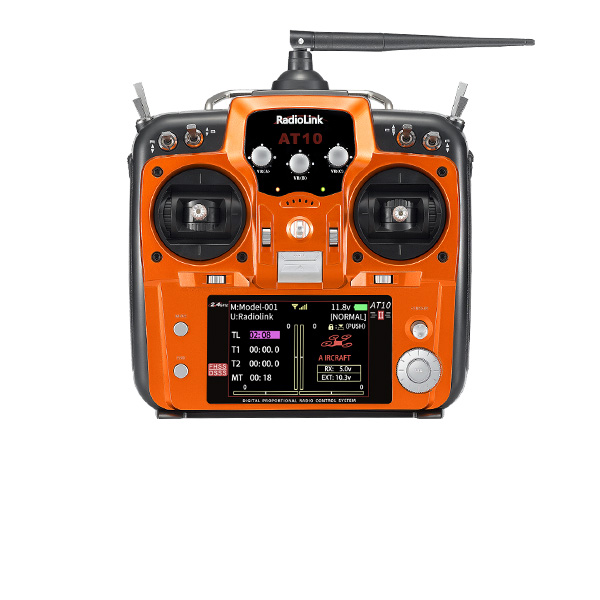
AT10II/AT10 Firmware
Please upgrade to Windows 7,8,10,11, or XP computer; cannot upgrade on Apple MAC computer
1. Latest Firmware
(1) Firmware Version: AT10(AT10II)_Latestfirmware_V1.5.5T.mac
(2) Update Date: April 13, 2026
(3) Update Details:
Resolve the risk that certain functions and variables may change unexpectedly due to insufficient stack allocation.
Increased PPM output to 12 channels.
Note: After upgrading to this firmware, please go to the [System Settings] menu to check the stick mode. If it has changed, please reset it to the correct stick mode.

Attention: If you can not download the files when clicking above, please click the website below to download the files you need.
http://www.radiolink.com.cn/firmware/transmitter/AT10II/
2. How to upgrade AT10II and AT10 firmware
Preparation Steps:
① Download the corresponding firmware. (.mac firmware compatible with Windows 7,8,10,11, or XP.)1. Keep the AT10II/AT10 powered off, then connect it to the computer via a USB cable.
Note: Make sure to use a data-enabled USB cable for the upgrade, as a regular charging cable will not work.
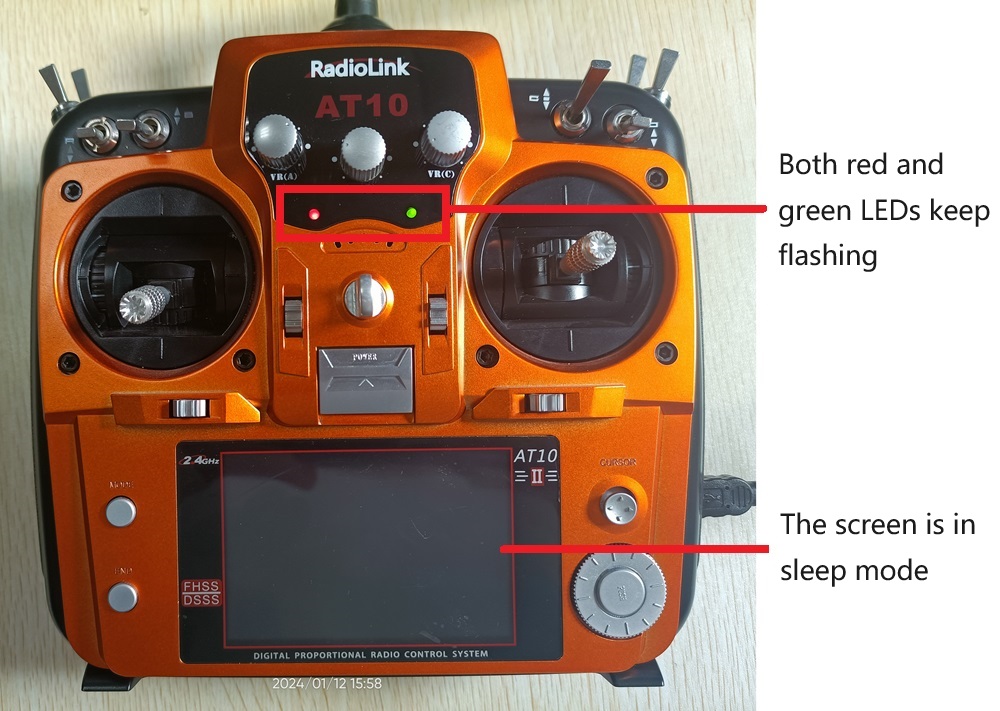
② Power on the AT10II/AT10 (AT10II/AT10 needs connecting a 2S-4S LiPo battery or 8 pieces AA batteries). Then, both the red and the green LEDs of AT10II/AT10 will start flashing while the screen is in sleep mode.
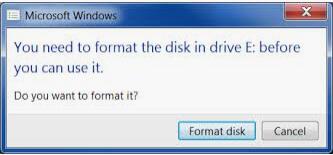
③ Click "Format disk" to format the original firmware, and then copy and paste the latest firmware into your radio disc.
Note: The window below will pop out to notify before format, click confirm to process. The format won't clear data in your computer but only the firmware in your AT10II/AT10, which is the extra disk you connect to your computer.
④ Disconnect your radio from the computer after finishing the firmware paste.
Note:
The red and green LEDs are always on during the copy process. Once the LEDs start flashing, the copy is done.
The firmware version and the stick mode can be checked in the PARAMETER menu after you have upgraded to the latest firmware.
Note: If the screen of your AT10II turns blank with LEDs on the transmitter flashing or upside down after upgrading the latest firmware above, it's because of the compatibility problem between the LCD panel and drivers. Please download the corresponding firmware to restore the display. After flashing the restoration firmware, the latest firmware can be flashed. If the problem is still unsolved, please send emails to after_service@radiolink.com.cn for tech support.
3. Video Tutorial as below:
*Note: If the AT10II remote control has flashed the OS firmware (V6.1.1S-V6.1.5S), how can it go to a version without the OS system?
(1) First, upgrade the firmware to AT10II_UpdateBootloader_A000(VA0).bin. This firmware restores the factory bootloader.
(2) After the upgrade is complete, unplug the USB and restart. Then, press PUSH to complete the factory bootloader upgrade.
(3) After the bootloader upgrade is completed, the firmware AT10II&AT10 Latest Firmware V1.5.2T(do not need to unzip).mac can be upgraded normally.
2026-01-27
2026-01-22





 简体中文
简体中文- English